CPL Real Rewards Odoo 17 — Head Office Checker Operating Manual
Document Control:
* Owner & Publisher: CPL Real Rewards Team
* Technical Maintenance: Systems Developer
* Target Audience: Head Office Loyalty Checkers, Internal Audit Officers, Compliance Managers
* Applicable Environments: Staging (https://angry-mad-smile.cpl.com.pg) & Production (https://rewards.cpl.com.pg)
* Standard Version: v2.9.0
* Effective Date: October 2026
* Document Status: Production Certified & Verified
Document Control Log
| Revision | Date | Operational Author / Reviewer | Description of Operational Updates |
|---|---|---|---|
| v1.0 | 2026-08-15 | Real Rewards Operations | Initial launch of Head Office Checker review queue and authorization workflows. |
| v2.0 | 2026-09-20 | Real Rewards Operations | Added audit trail tracking and legacy card replacement review procedures. |
| v2.5 | 2026-10-02 | Real Rewards Operations | Integrated Quarantined Cards Queue claim approvals, Blocked Cards zero-points enforcement, and 5-Tab Navigation Layout. |
| v2.7 | 2026-10-04 | Real Rewards Operations | Added direct Blocked Cards menu navigation under Members and Governance & Queues, red ribbon visual governance, and fraud unblock protocols. |
| v2.8 | 2026-10-06 | Real Rewards Operations | Integrated automated In-Odoo Activity scheduling (mail.activity), Top-Bar Systray Clock alert counter, and MS Graph RFC 2822 email notifications (STG-TICK-033). |
| v2.9.0 | 2026-10-07 | Real Rewards Operations | Documented Member Service Request Amendment & Resubmission Lifecycle (STG-TICK-043), Odoo Discuss ChannelSelector search (STG-TICK-042), and formalized Real-Time Daily Issue Flagging Protocol. |
1. Checker Role & Dual-Control Mandate
Under CPL Group's internal control framework, Head Office Checkers serve as the second line of defense against loyalty fraud, unauthorized points manipulation, and account compromise:
- Exclusive Authorization: Checkers hold exclusive authority to Approve, Reject, or Block/Unblock member cards.
- Segregation of Duties: A Checker cannot approve requests that they initiated as a Maker. Dual control is strictly enforced at the database level.
- Mandatory Documentation: Every decision requires verified physical proof (scanned registration form, receipt copy, or photo ID) attached to the chatter.
2. Processing Member Change & Claim Requests
Checkers access pending requests via Members > Member Add/Change Requests:
flowchart TD
    Submitted["Request in 'Submitted' State<br/>(Initiated by Branch Maker)"] --> Review{"Checker Inspects Evidence<br/>& Attached Receipts"}
    Review -- "Evidence Valid" --> Approve["Click 'Approve'<br/>Points Transferred / Data Updated<br/>Status: 'Approved'"]
    Review -- "Evidence Inadequate / Suspect" --> Reject["Click 'Reject'<br/>Enter Mandatory Reason<br/>Status: 'Rejected'"]
Step-by-Step Approval Protocol:
- Open the request in Members > Member Add/Change Requests.
- Verify the Change Reason and compare the proposed changes against attached supporting files.
- For Quarantined Card Claims:
- Verify that the store code, date, and PGK spend on the receipt match the quarantined line.
- Verify that the target customer profile is an active, verified Golden Record.
- Click Approve in the header.
- System Execution:
- For Contact Updates: The member's profile is updated instantly.
- For Card Replacements: The old card is archived with full lineage; the new card is bound to the member.
- For Quarantined Claims: Historical transactions and uncaptured points transfer to the member's loyalty ledger, and quarantined lines transition to
claimed.
2.1 Real-Time Approval Notifications & Activity Systray
Under STG-TICK-033, Head Office Checkers receive immediate multi-channel alerts whenever a store staff member drafts and submits a request for review:
- Top-Bar Activity Systray (Clock Icon):
- When a Maker clicks Submit for Approval, Odoo schedules an automated To-Do / Approval activity assigned to all Checkers.
- The green Clock icon in the top-right header increments its counter (e.g.,
3). - Clicking the Clock icon displays a direct link:
Member Service Requests (Approval Required: PCR/2026/xxxx). - Clicking the notification takes the Checker straight into the request form.
- In-Odoo Discuss Inbox (
/mail/inbox): - Checkers with
notification_type = 'inbox'receive real-time chatter messages and desktop popups inside Odoo. - Microsoft Graph API Email Alerts:
- Outgoing notifications are dispatched via Microsoft Graph API directly to the Checker's corporate CPL email (
mfrank@cpl.com.pg,fnarokobi@cpl.com.pg, etc.). - Automated Activity Completion:
- Once a Checker clicks Approve or Reject, the scheduled activity is automatically marked as done (
activity_feedback) and cleared from the top systray.
3. Blocked Cards Governance & Fraud Lockout
Checkers have authority to lock down compromised, stolen, or suspicious member cards:
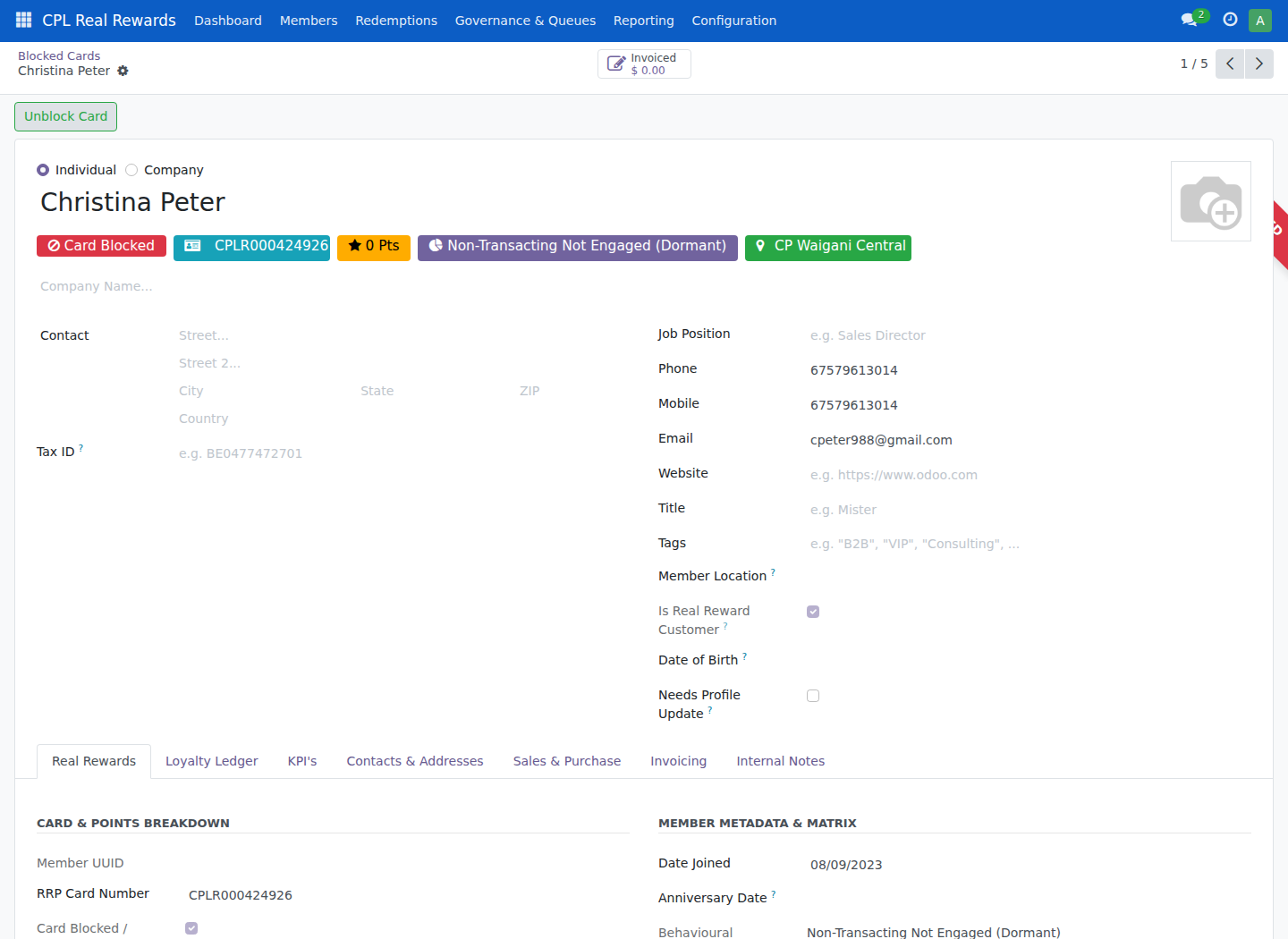 Figure 1: Blocked Card profile displaying the red 'Card Blocked' ribbon, 0 Pts balance, and Unblock Card header button.
Direct Access & Review:
- Navigate directly to Members > Blocked Cards or Governance & Queues > Blocked Cards.
- Open any flagged profile (e.g. Joshua Lana
#643871, Christina Peter#700371).
Blocking a Compromised Card:
- Open the member profile in Real Rewards Members.
- Click Block Card in the top header.
- Automated Security Trigger:
- Instantly zeroes
loyalty_points_availableon all POS tills. - Renders the prominent red Card Blocked ribbon and red status badge.
- Auto-routes any subsequent till scans to the Quarantined Cards Queue under
Blocked Card Scan. - Prevents any voucher or in-store redemption attempts.
Unblocking a Card:
- If an account was blocked due to a false alarm or identity has been confirmed by retail management:
- Open the record from Members > Blocked Cards.
- Click Unblock Card in the header.
- The red ribbon is removed, the card status returns to active, and till redemption functionality is restored.
4. Rejection Protocol: Sending Back for Correction vs. Permanent Rejection (STG-TICK-043)
When reviewing a Member Service Request, Checkers now have full control over the correction lifecycle to prevent store staff from having to re-type forms from scratch:
4.1 Sending Back for Correction (Clerical Errors & Incomplete Data)
If an application contains fixable clerical errors (e.g. wrong phone format, minor name typo, blurry ID copy, or missing receipt attachment):
- Click
Reject / Send Backin the form header. - In the modal wizard:
- Enter clear, actionable instructions in Reason / Instructions (e.g., "Phone number must be an 8-digit PNG mobile number (e.g. 71234567). Please amend and resubmit.").
- Click the yellow
Send Back for Correction (Draft)button. - Automated Governance Actions:
- The request stage is immediately reset to
Draft, unfreezing all form fields for the Maker. - An in-Odoo Correction Required Activity is automatically scheduled for the Maker (
requested_by). - An Automated HTML Email Alert is dispatched to the Maker's inbox with your instructions and a direct link to the record.
- A full audit entry is logged in the record Chatter.
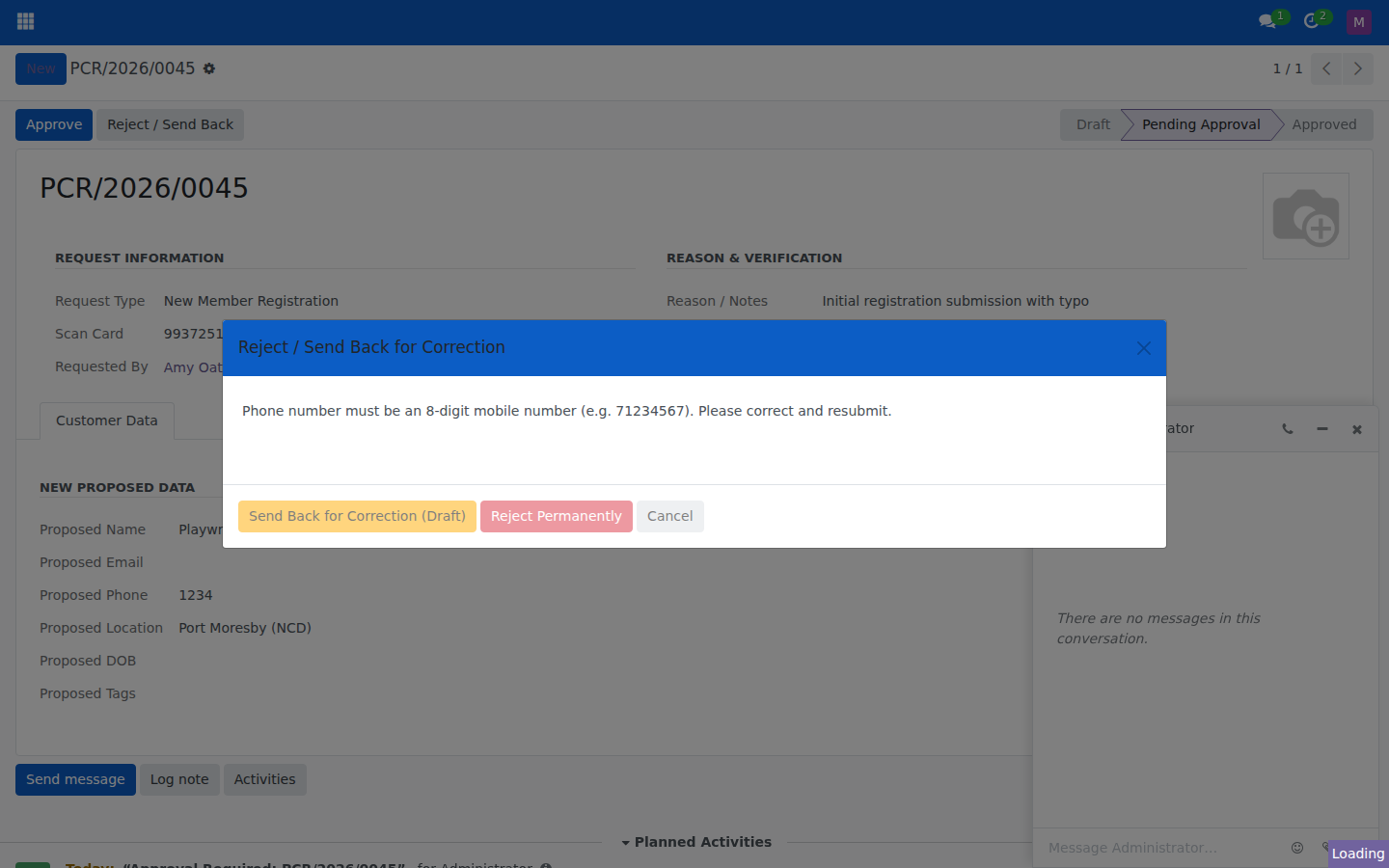 Figure 2: Checker using the enhanced wizard to send a request back to Draft with specific instructions.
4.2 Permanent Rejection (Fraud or Duplicate Submissions)
If an application is fraudulent, duplicate, or should never be processed under any circumstances:
- Click
Reject / Send Backin the header. - Enter the justification in Reason / Instructions.
- Click the red
Reject Permanentlybutton. - The record stage transitions to
Rejected, and an email notification is dispatched to the Maker advising them of the permanent rejection.
4.3 Reopening Past Rejected Records (Send Back for Correction Header Action)
If a record was rejected in the past and the store Maker needs to amend and salvage it:
- Navigate to Members > Member Service Requests and open the rejected record (
state == rejected). - Notice the yellow
Send Back for Correctionbutton in the header. - Click
Send Back for Correction. - Confirm the confirmation prompt:
"Are you sure you want to send this rejected request back to Draft status for the Maker to amend and resubmit?"
- Click Ok.
- The record immediately reverts to
Draft, all fields become editable, and the Maker is notified to amend and resubmit.
4.4 Reviewing and Approving Resubmitted Requests
Once the Maker amends the flagged fields and clicks Submit for Approval:
- The request transitions back to
Pending. - The Maker's pending correction activity is auto-cleared.
- The Checker reviews the amended details (e.g., verifies the corrected 8-digit phone number).
- Click
Approveto finalize the creation or update of the member profile.
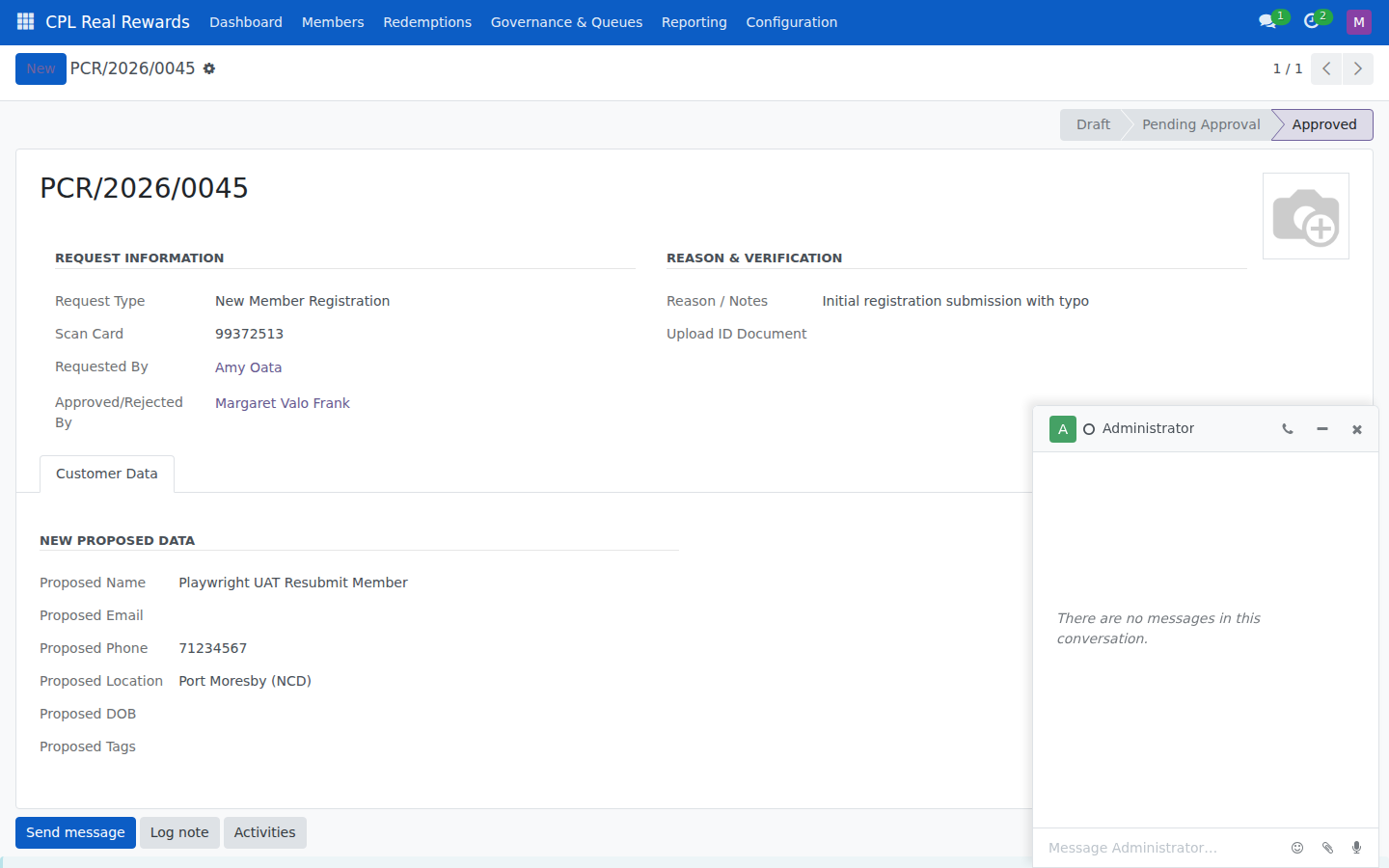 Figure 3: Checker approving the amended and resubmitted request, creating the verified customer profile.
5. Profile Change Approval & Dual-Control Audit
When a Checker opens a pending change request:
- Review the proposed modifications (e.g. mobile phone update to
71888888). - Click Approve.
- The request transitions to
Approved, and the underlyingres.partnerprofile is updated immediately.
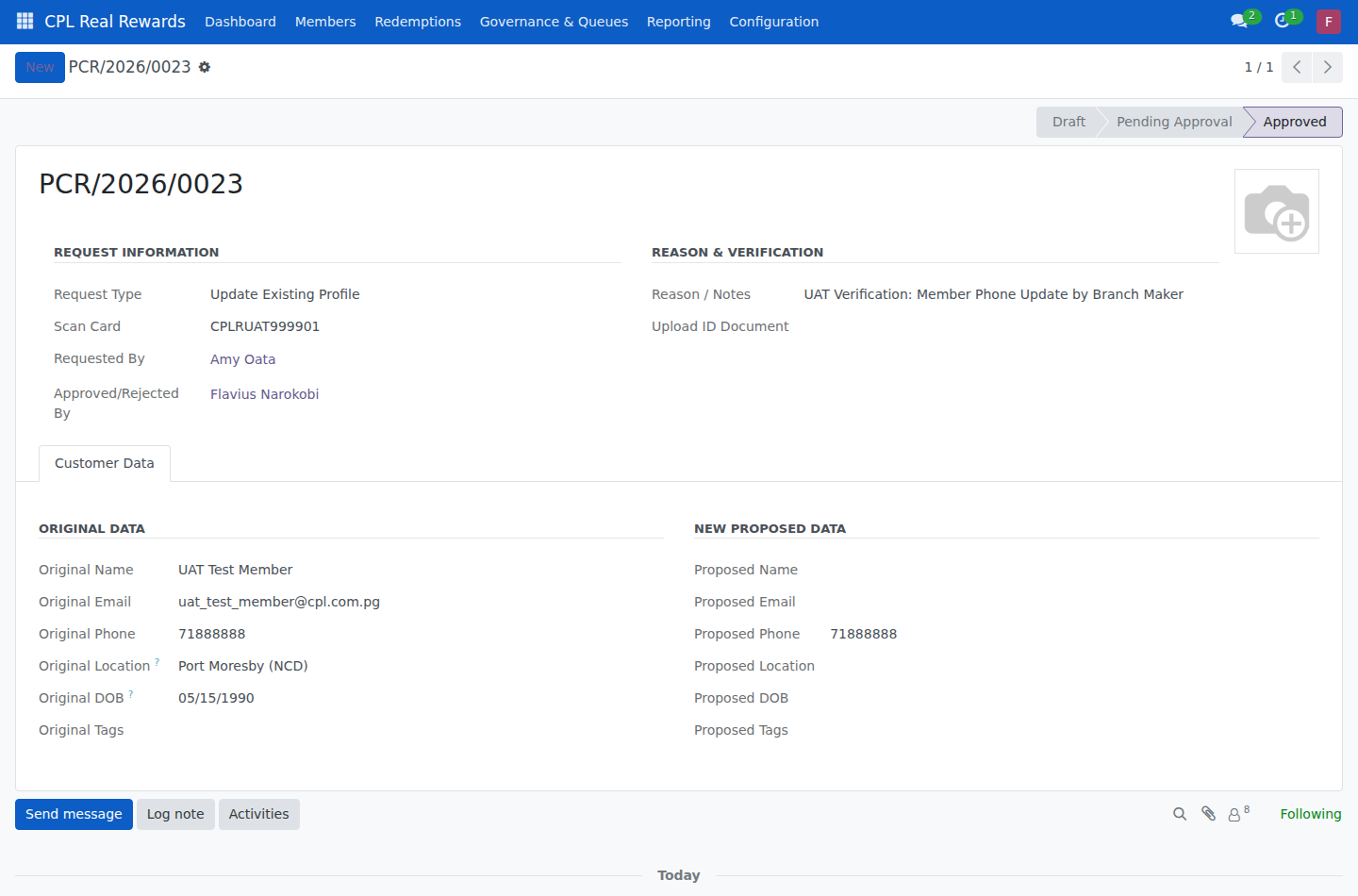 Figure 2: Checker approving a Member Profile Change Request in Odoo 17.
6. Quarantined Claim Verification & Point Transfer
For claims submitted from the Quarantined Cards Queue:
- Open the claim request in Member Add/Change Requests.
- Verify the till receipt notes and uncaptured points.
- Click Approve.
- The system transfers points to the member's Golden Record loyalty ledger and automatically archives the temporary unclaimed card.
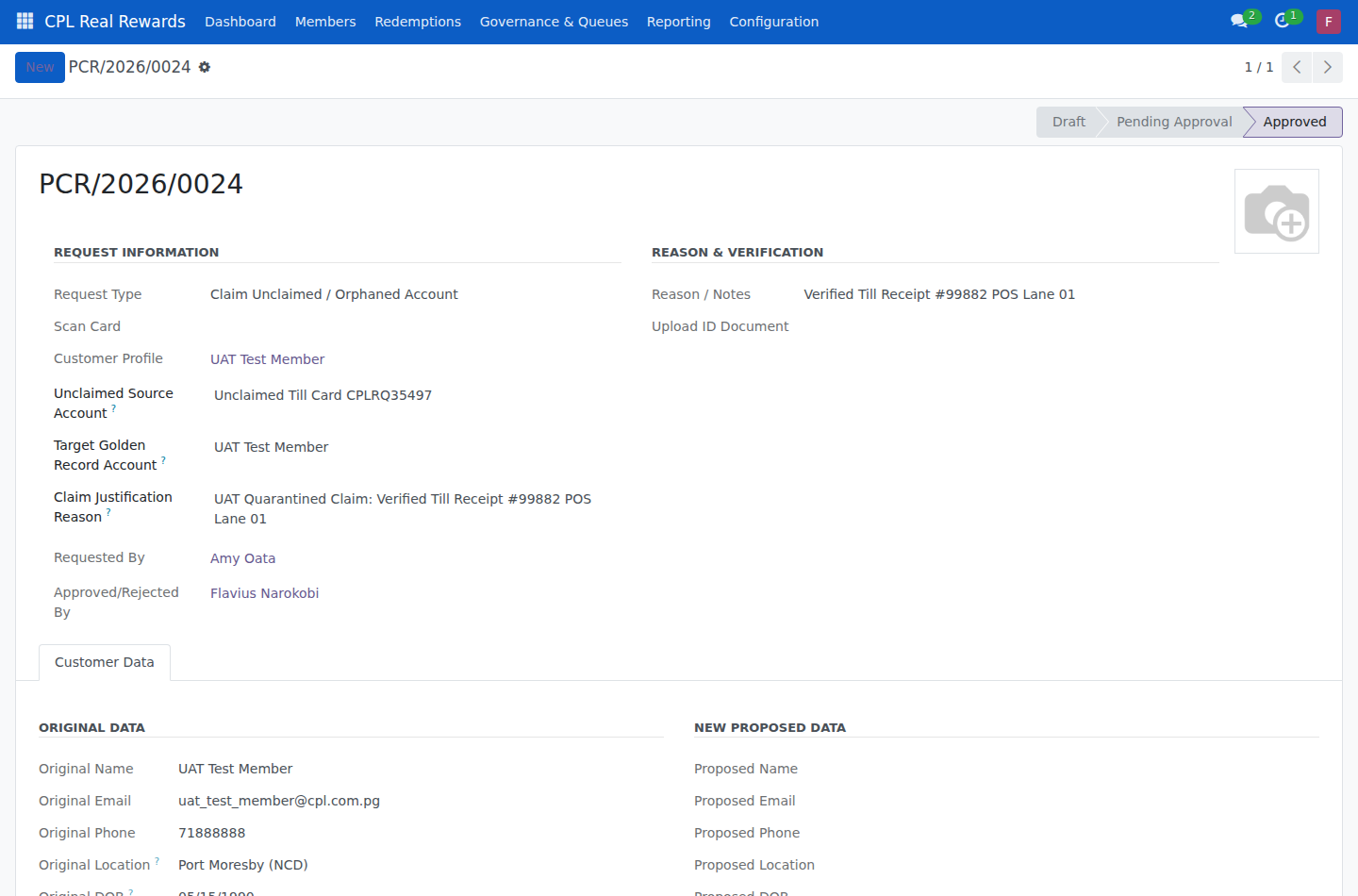 Figure 3: Checker verifying and approving a Quarantined Card claim.
7. Card Replacement Approval & Swap Lineage Inspection
When approving a Card Replacement request:
- Verify that the new card barcode has been scanned correctly.
- Click Approve.
- Open the member's profile and inspect the Card Replacement History tab.
- The embedded lineage table displays the complete historical swap trail (Old Card -> New Card, Date, Operator, and Reason) while the customer's permanent
member_uuidremains unchanged.
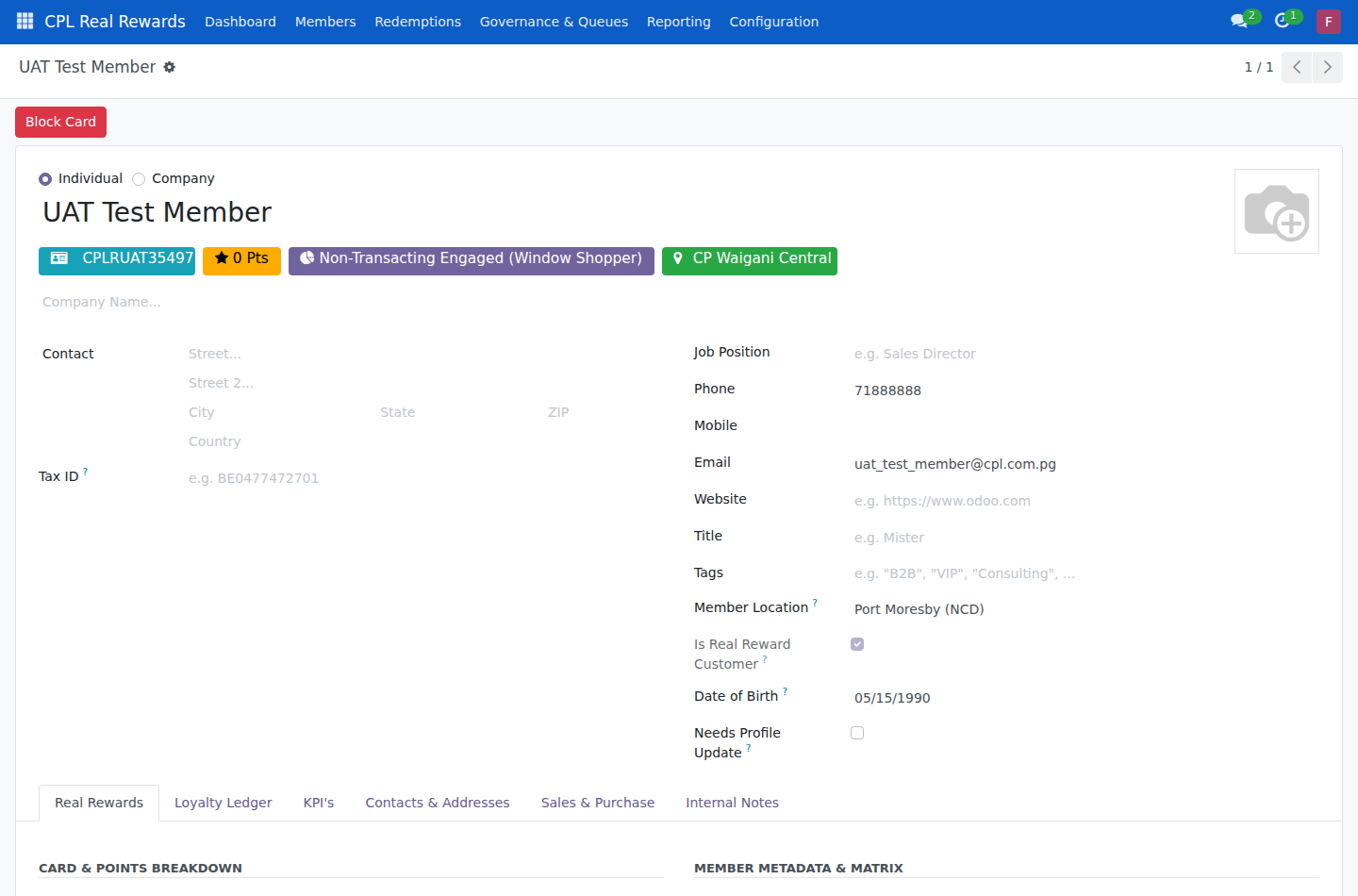 Figure 4: Member profile Card Replacement History tab displaying full barcode lineage.
8. Card Lockout & Verified Unblock Protocol
Checkers execute emergency card lockouts and identity-verified restorations:
- Card Lockout: Clicking Block Card zeroes points at the POS till and places a red Card Blocked ribbon across the profile.
- Identity Verification & Unblock: When the customer presents valid photo ID, the Checker clicks Unblock Card and enters the verification reason. The ribbon is removed and full loyalty benefits are restored.
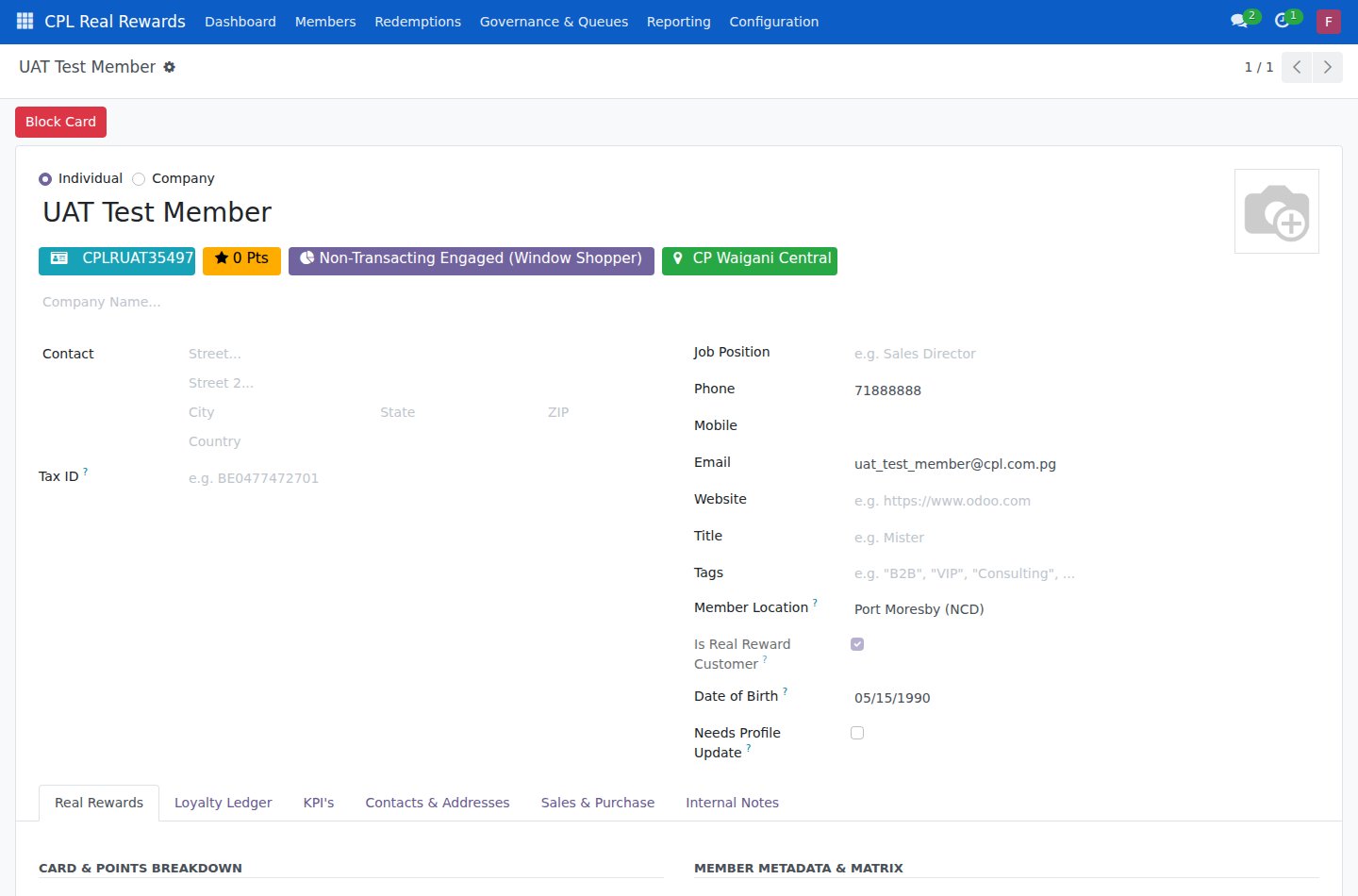 Figure 5: Compromised member profile displaying active red 'Card Blocked' ribbon and 0 Pts balance.
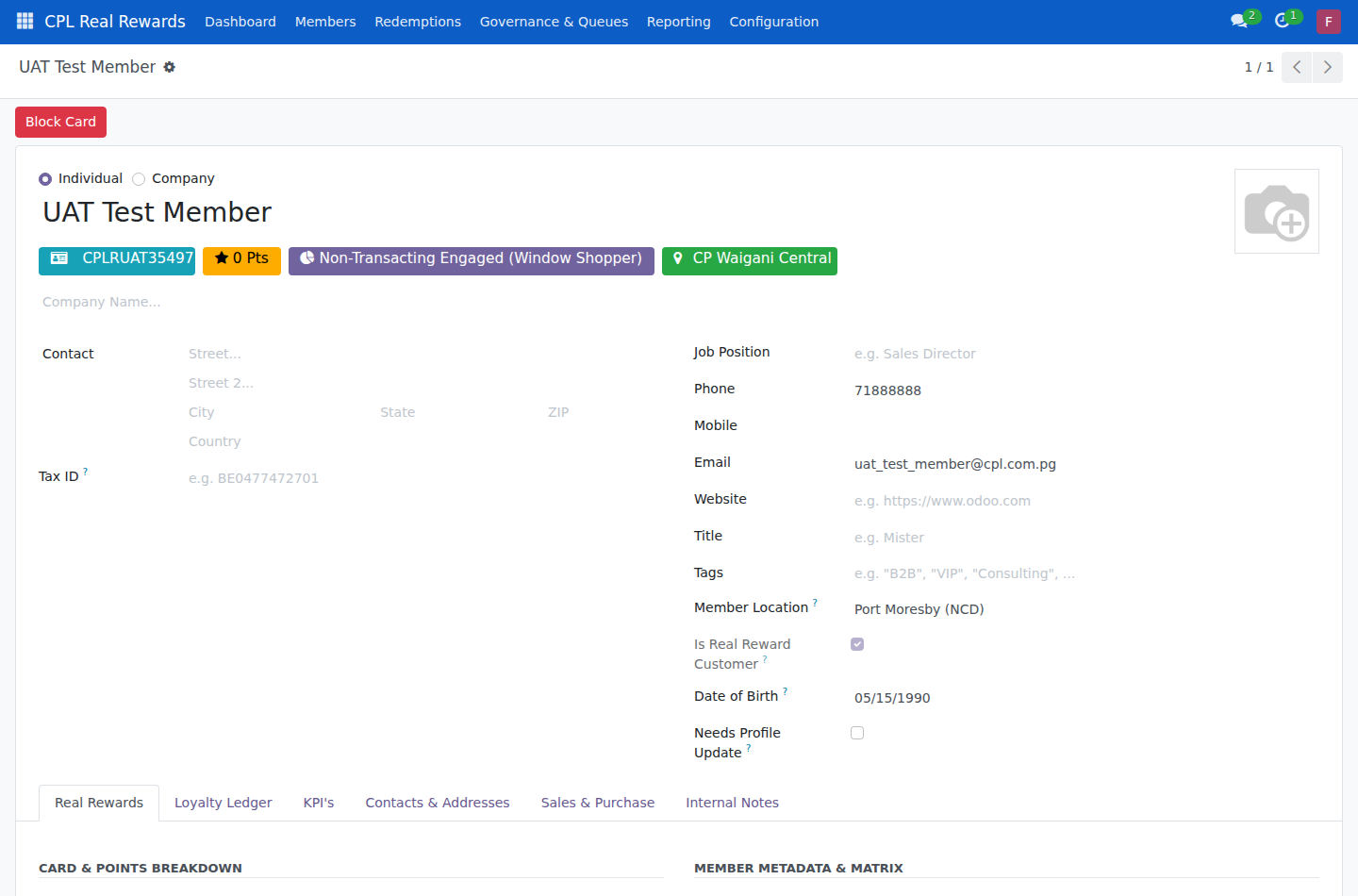 Figure 6: Restored member profile after Checker unblock action with audit trail logged.
9. Head Office Manual Points Adjustments (STG-TICK-031 / KB-031)
Following the removal of store access under STG-TICK-031, Manual Points Adjustments are strictly restricted to Head Office Checkers and System Administrators:
- Dual-Control Enforcement:
- A Checker drafts the adjustment request specifying the member, points delta, and a mandatory detailed reason ($\ge 5$ characters).
- An independent Checker must review and approve the request. Direct self-approval is blocked at the database level (
maker_id != checker_id). - Access Path:
- Navigate to Point of Sale > Orders > Points Adjustments or select Manual Points Adjustment in Member Add/Change Requests.
- Ledger Posting:
- Approval automatically posts a signed ledger entry (
transaction_type = 'adjust') to the member's permanent ledger, ensuring zero liability inflation.
10. Unclaimed & Orphaned Accounts Governance (STG-TICK-032 / KB-032)
Following STG-TICK-032, retail branches are barred from viewing or claiming orphaned accounts:
- Access Path:
- Navigate to Governance & Queues > Unclaimed Accounts Queue (Legacy) or Unclaimed Claims Audit Log.
- Claim Protocol:
- Verify uncaptured POS receipts presented by the customer.
- Initiate a
Claim Unclaimed / Orphaned Accountservice request in Member Add/Change Requests. - Specify the
Unclaimed Source Accountand the target verifiedGolden Record Account. - On independent Checker approval, points and transaction histories merge atomically into the active Golden Record, and the orphan profile is archived.
11. Real-Time Communication & Daily Issue Flagging Protocol
Head Office Checkers serve as the central operational approval hub connecting store branch makers and supervisors with technical support. To ensure seamless operations and rapid resolution of retail friction:
11.1 Daily Issue Triage & Elimination of Friday Backlogs
- Operational Directive: Do NOT accumulate issues across the week or wait until Friday to flag problems.
- When store makers or supervisors report issues, card anomalies, or operational roadblocks, triage and address them on the same day.
- Immediate daily flagging enables the Systems Developer to diagnose root causes, develop targeted patches on Staging, execute Playwright UAT, and deploy to Production within hours.
11.2 Record-Level Chatter @Mentions (Communicating with Store Makers & Supervisors)
- When a Member Service Request requires additional documentation, clarification, or correction:
- Open the request in Members > Member Add/Change Requests.
- Use the Send Back for Correction button to set the form back to Draft so the store maker or supervisor can amend it directly (no new form needed!).
- In the record Chatter at the bottom of the screen, post a note or message @mentioning the maker or supervisor (e.g.
@Store Maker Please update customer DOB to match the attached ID copy). - The store maker receives an instant notification, updates the form, and resubmits.
- Audit Trail: All notes, change requests, and approvals remain permanently tethered to the member request for internal audit inspection.
11.3 Odoo Discuss Real-Time Messaging (Direct Collaboration)
- For direct communication between Checkers, Store Makers, and Systems Developer:
- Click the Conversations / Chat icon (speech bubbles) in the top-right navigation bar.
- Click New Message.
- Message the Store Supervisor / Maker for operational follow-ups, or the Systems Developer for technical bug escalations.
- With the search optimization implemented in
STG-TICK-042, partner suggestions load cleanly without UI errors, allowing instant peer-to-peer messaging across head office and retail branches.
11.4 Escalation Matrix for Critical Incidents
- Store POS & Sequence Blockers: Immediately notify the Systems Developer via Odoo Discuss or email (
STG-TICKpriority). - Suspected Fraud / Points Tampering: Use the Block Card action immediately to freeze the account at 0 points, then flag the incident to Internal Audit and Real Rewards Administration.